To add a generated HTML signature please take the following steps:
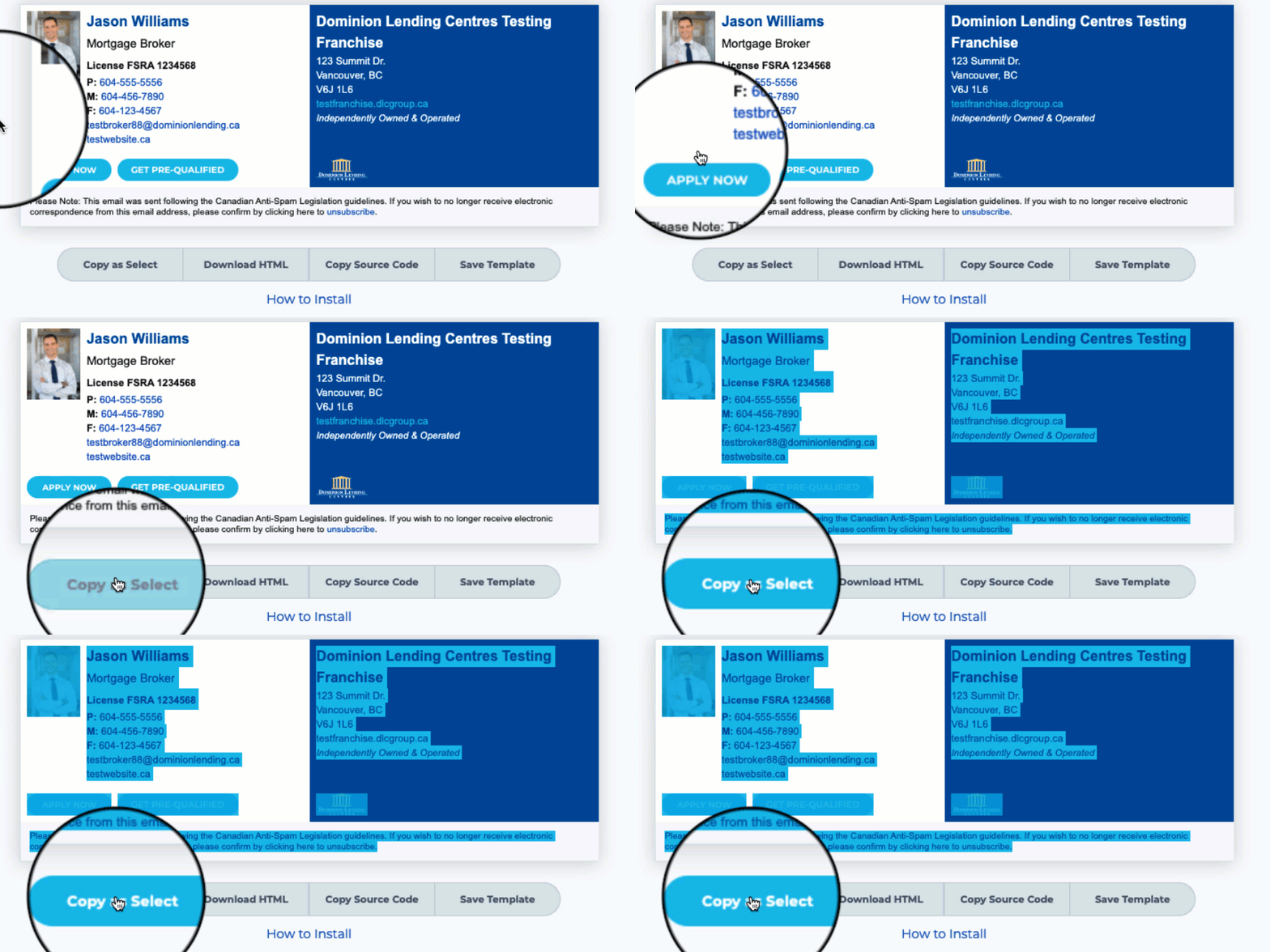
- STEP 1: Click Copy as Select button on the email signature tool to store a copy of your email signature.
- STEP 2: Login to your Outlook Live account via your browser (Ex. Chrome, Firefox, Edge, etc...) to view the email client's dashboard.
- STEP 3: Once logged in to Outlook Live, click the Cog (top right), to view settings and select View All Outlook Settings menu item from the dropdown menu.
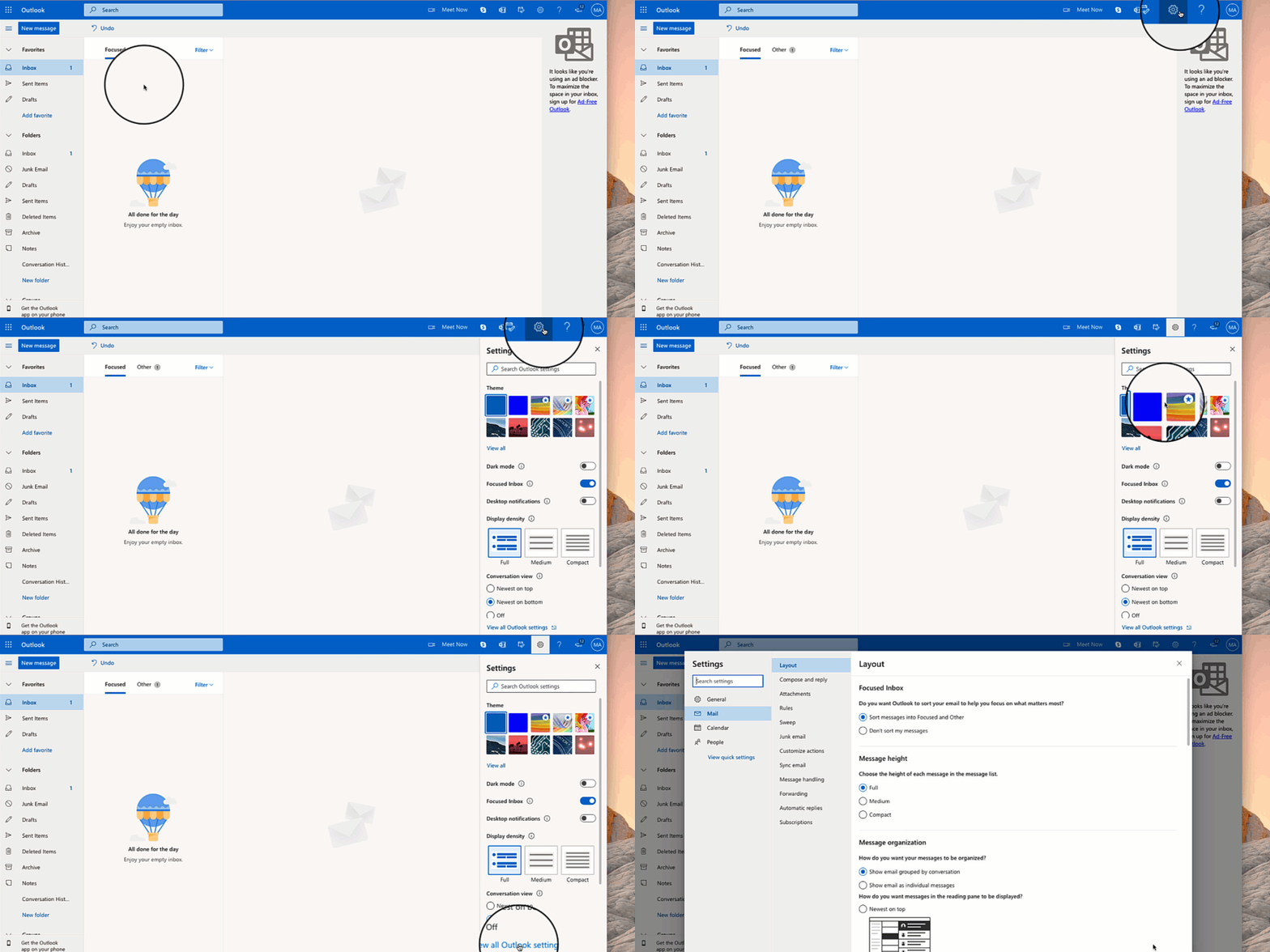
- STEP 4: In the Settings window, select the Compose and Reply tab.

- STEP 5: Paste your email signature into the Signature field by pressing Command + V. After the signature is added click the close window button (X).
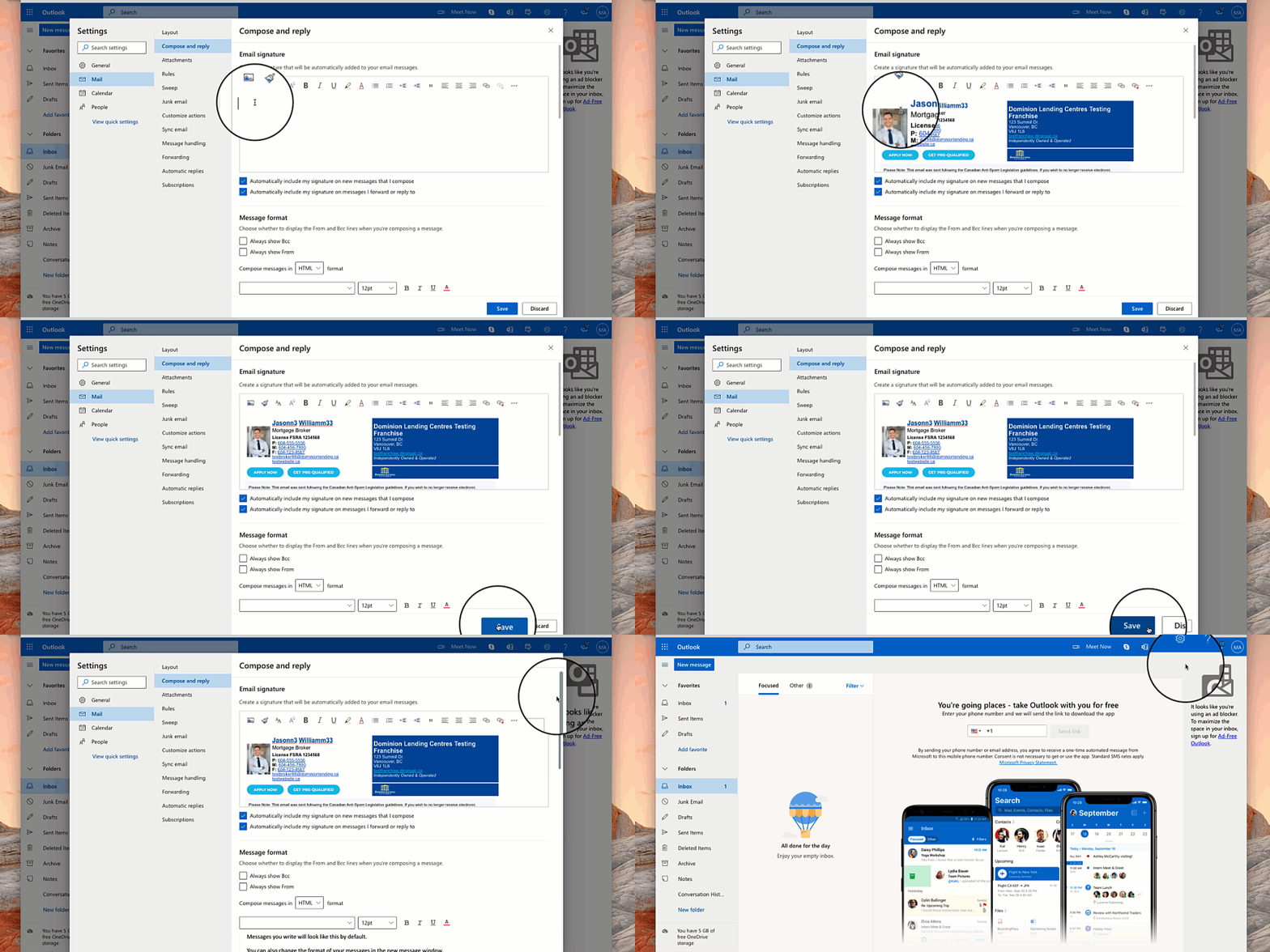
- STEP 6: Compose a new email or reply to an email. Your email signature should be automatically inserted into your emails.
You are now set up and ready to go!